WhatsApp Business for Singapore SMEs: A Practical Set-Up Guide
For most Singapore small businesses, the free WhatsApp Business app is the right start and the API can wait. Set it up in this order: move your number into the app, complete the profile, add a catalogue, switch on greeting and away messages, save quick replies, sort chats with labels, then put a wa.me link and QR code wherever customers decide. Every limit below links to WhatsApp's own help pages, and a free builder writes your first messages.
- Step 1Number and profile
- Step 2Catalogue
- Step 3Greeting, away, quick replies
- Step 4Labels
- Step 5Links and QR codes
- Step 6PDPA habits
App or Platform: which WhatsApp Business do you need?
WhatsApp Business comes in two forms. The app is free and provides for one phone number. The Platform, which most people call the API, is a set of APIs that connect WhatsApp to your CRM, booking or marketing tools, so many staff and bots can answer at once. Meta's WhatsApp vs WhatsApp Business comparison points businesses that need a multi-user set-up to the Platform.
| Business app | Business Platform (API) | |
|---|---|---|
| Cost | Free to download | Charged per delivered message |
| Who replies | You, from one number | Many staff, a chatbot or your own systems |
| Runs on | Your phone, plus up to four linked devices | Your CRM, booking or marketing tools |
| Set-up | Download from the app store | A developer or one of Meta's partners |
| Messaging rules | Reply whenever you like | Free-form replies only within 24 hours of the customer's last message; after that, approved templates |
The Platform charges per delivered message, at a rate set by the message category and the recipient's country code; messages customers send you are free. Since 1 October 2026, replies inside the 24-hour window (Meta calls them service messages) are also charged once a number passes 1,000 in a month, and Meta can change rates on the first day of each quarter. Check the live rate card in Meta's pricing documentation before you budget.
Our rule of thumb: if one or two people answer the chats, use the app. Move to the Platform when a team shares one number, when you want automatic order updates, or when a chatbot should reply first.
Why bother setting it up properly?
Across the client sites we run, WhatsApp buttons convert at roughly ten times the rate of contact forms for Singapore SME buyers. That is our own observation, not an industry study, and it is why our web design services page leads with WhatsApp instead of a form.
But a chat button only wins if the account behind it looks like a real business: a complete profile, a fast first reply, a straight answer to "how much?". That is what the six steps below set up.
Step 1: Move your number and fill in the profile
Use the number customers already have. WhatsApp lets you move an existing account into the Business app with the same number, chats and media included. Back up first, and save your contacts to the phone's address book, because contacts stored only inside WhatsApp are lost in the move. One number cannot run in both apps at once. You can move back to the standard app later, but business features such as your catalogue stay behind, so decide now whether your personal number should become the business one.
Then fill every field in the business profile: up to three categories, an address chosen from the suggestions, a short description, an email, a website, and business hours set as selected hours, always open or by appointment.
Write the address the way a customer would type it into a map app, with the unit number and postal code. Set real hours, because the away message schedule reads them (step 3). The app also turns your profile into ready-made default quick replies for your address and hours. If you run a Google Business Profile, keep the details identical (our Google Business Profile guide explains why).
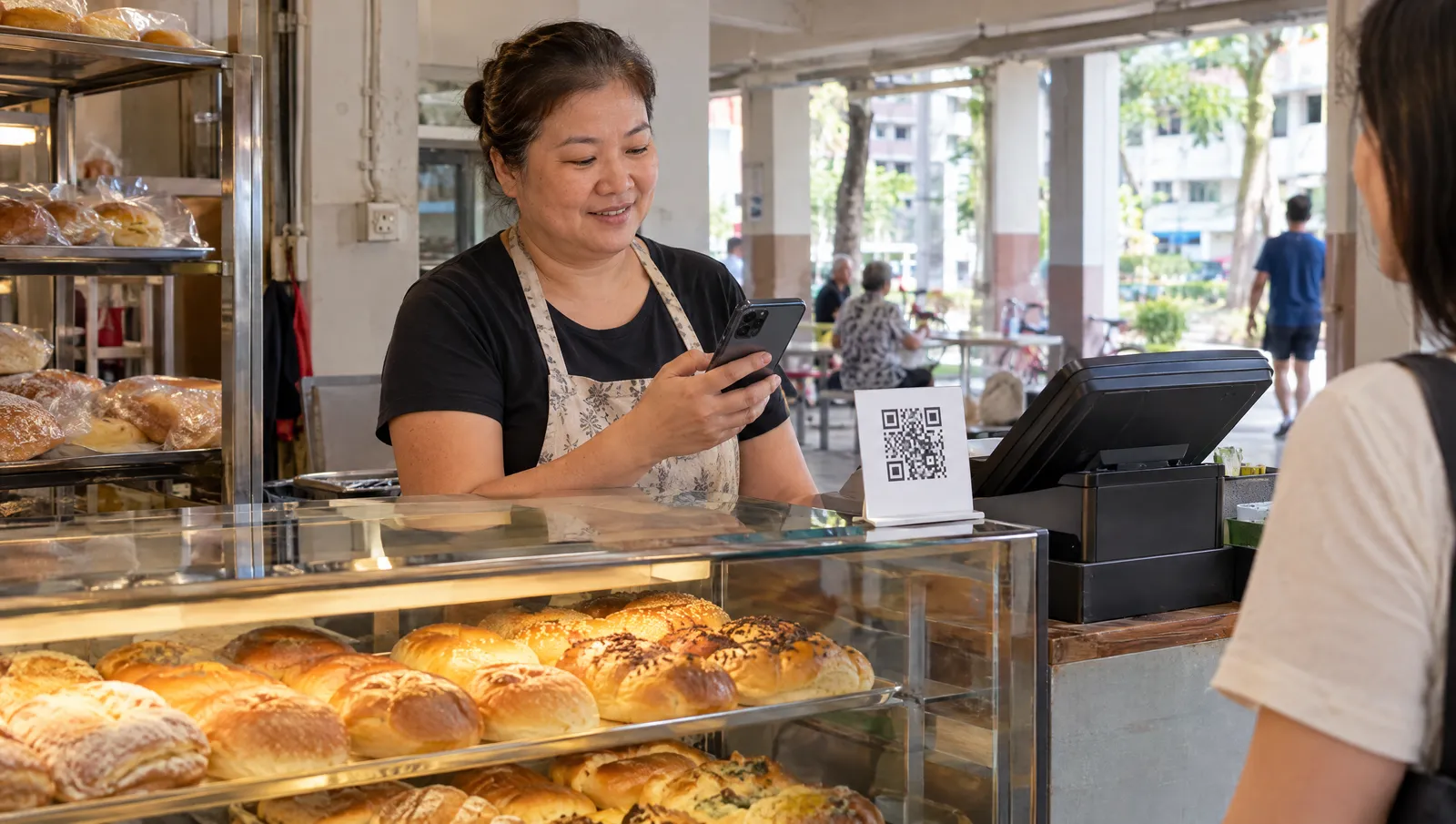
Step 2: Add a catalogue, even if you sell services
The catalogue is a shop window inside the chat. Each item can carry a name, photos, a description, a price and a product code or link, and you can group items into collections. WhatsApp's catalogue help page sets one rule worth knowing: the catalogue is for listing products and services, not for displaying ads.
Service businesses tend to skip this. They shouldn't. An aircon company can list general servicing, a chemical wash and a gas top-up, each with a photo and a "from" price. When someone asks "how much ah?", you send the item instead of typing the answer again. One limit: a collection cannot be shared as a single link, so share individual items or the whole catalogue.
Step 3: Greeting, away messages and quick replies
A greeting message goes out automatically when someone messages you for the first time, or after 14 days without contact. You choose who gets it: everyone, only people not in your address book, everyone except contacts you pick, or only contacts you pick. See WhatsApp's greeting messages guide.
An away message answers when you can't. Choose a schedule: always, a custom time window, or outside business hours. That last option only appears once your hours are saved in the profile (see the away messages guide). A good one says you are closed, says when you will reply, and asks for the details you will need, so your first reply in the morning can be a quote rather than another question.
Quick replies are saved answers you call up by typing "/" in any chat. You can store up to 50, each with its own shortcut, and edit the text before you send (see the quick replies guide). Start with what you answer most: price, location, hours, availability and payment. The builder below writes a greeting, an away message and four quick replies for your type of business.
Greeting, away message and quick-reply builder
Fill in a few details and get a greeting, an away message and four quick replies with shortcuts, written for your type of business. Copy each one straight into the Tools tab of the WhatsApp Business app.
Replace anything in [square brackets] before you save. Give each quick reply the shortcut shown; in a chat, type / to pull up your quick replies.
Runs entirely in your browser. Nothing you type here is sent or stored anywhere.
Step 4: Use labels as a simple sales pipeline
Labels colour-code your chats, and you can create up to 20 of them (WhatsApp's labels guide). WhatsApp is gradually renaming them "lists", so your app may show either word. A set that works for most service businesses: New enquiry, Quoted, Follow up, Booked, Paid. One glance shows which quotes have gone quiet, which is when the follow-up quick reply earns its place. The same guide notes you can send a marketing message to everyone under a label at once. Read step 6 before you do.
Step 5: Click-to-chat links and QR codes
Any WhatsApp number can be opened with a click-to-chat link: wa.me/ followed by the full number in international format, without the plus sign, leading zeros, brackets or dashes. Add ?text= and a URL-encoded message to pre-fill the chat (WhatsApp's click to chat guide). A Singapore number looks like wa.me/6591234567.
The Business app also makes a short link for you under Tools, and you can set a default message that appears when a customer opens it. Your QR code sits in Settings, behind the green QR icon next to your business name; if you frame it with WhatsApp's sticker template, the printing guide asks for 8 cm by 8 cm. Put it on the counter, the van, the invoice and the flyer.
Where the links belong on your website, plus a builder that tags each link with its page, is in our WhatsApp leads guide.
Step 6: Keep customer chats PDPA-safe
Chats hold personal data (names, addresses, photos of people's homes), and the PDPA applies to them like any customer record.
Marketing messages and the Do Not Call Registry
The PDPC's guide to the Do Not Call Registry lists app messages that use a person's number, such as WhatsApp, under its No Text Message Register. Its guide for organisations sets the rule: before sending a marketing message to a Singapore number, check it against the DNC Registry within the 21 days before sending, unless the person gave clear and unambiguous consent.
Messages to someone in an ongoing relationship with you (a membership, subscription, account or loan) need no check, but only when the message relates solely to that relationship; a one-off purchase does not create one. A service message with a promotion attached, such as a delivery update carrying a discount code, still counts as marketing. The PDPC also advises putting opt-out instructions in each message (its example is reply UNSUB) and stopping within 21 days when someone withdraws.
In practice: replying to an enquiry is fine. Adding everyone who ever messaged you to a promotions broadcast is not. Ask once at the end of a job and label the people who agree "OK to market".
How long you keep chats, and who can read them
The PDPA sets no fixed retention period, but the PDPC's retention guidelines say to stop keeping personal data once it no longer serves its purpose or any legal or business need. Clear out old chats you no longer need, and lock the phone. WhatsApp lets you link up to four devices to the main phone, which is four more places your chats can be read, so unlink a departing staff member's device the same day.
This is general guidance, not legal advice. Before marketing at any scale, read the PDPC's guides in full.
When does a chatbot on WhatsApp help?
A chatbot earns its keep when the same questions arrive all day, when most enquiries land after hours, or when several people share one inbox. Below that, quick replies and a good away message do the job for free.
A custom bot trained on your services connects through the Platform, so the per-message pricing above applies. It works best paired with a website chat that answers browsing questions and passes serious buyers to a person. That is how our own site works: the chat collects a name and WhatsApp number, and our team takes it from there. Our AI chatbot buyer's guide has a quiz that tells you whether you are ready. If you would rather not build one yourself, we set up and run AI chatbots on WhatsApp and websites; our plans page shows which plans include one.
Common questions about WhatsApp Business
Is WhatsApp Business free in Singapore?
The app is free. The Platform (the API) charges per delivered message, by message category and the recipient's country; messages customers send you are free. Since 1 October 2026, replies are also charged after the first 1,000 per number each month. Check Meta's live rate card before you budget.
Can I use my existing number for WhatsApp Business?
Yes. You can move an existing WhatsApp account into the Business app with the same number and your chats. Back up first. You can move back later, but business features such as the catalogue stay behind.
Should a small business use the app or the API?
Start with the free app if one or two people answer the chats. Move to the Platform when a team shares one number or a chatbot should reply first.
Can I send promotions to customers on WhatsApp?
With care. The PDPC's Do Not Call rules cover marketing messages sent by WhatsApp to Singapore numbers. Check each number against the DNC Registry within the 21 days before sending, unless the person gave clear and unambiguous consent or the message relates solely to an ongoing relationship such as a membership.
Can several staff use one WhatsApp Business account?
Partly. You can link up to four devices to the main phone, so a colleague can reply from a computer. For a busy shared inbox, Meta points businesses to the Platform.
Want WhatsApp wired into your website properly?
We build sites where the chat button sits at every decision moment, set up the WhatsApp side so the first reply lands fast, and can add an AI chatbot that hands serious buyers to you. Or just try it now: message us on WhatsApp at +65 8613 7901.
See our web design services